
Media Library
Upload, filter, and organise the images and video your playlists draw from, and remove media you no longer need from the Loopvew library.
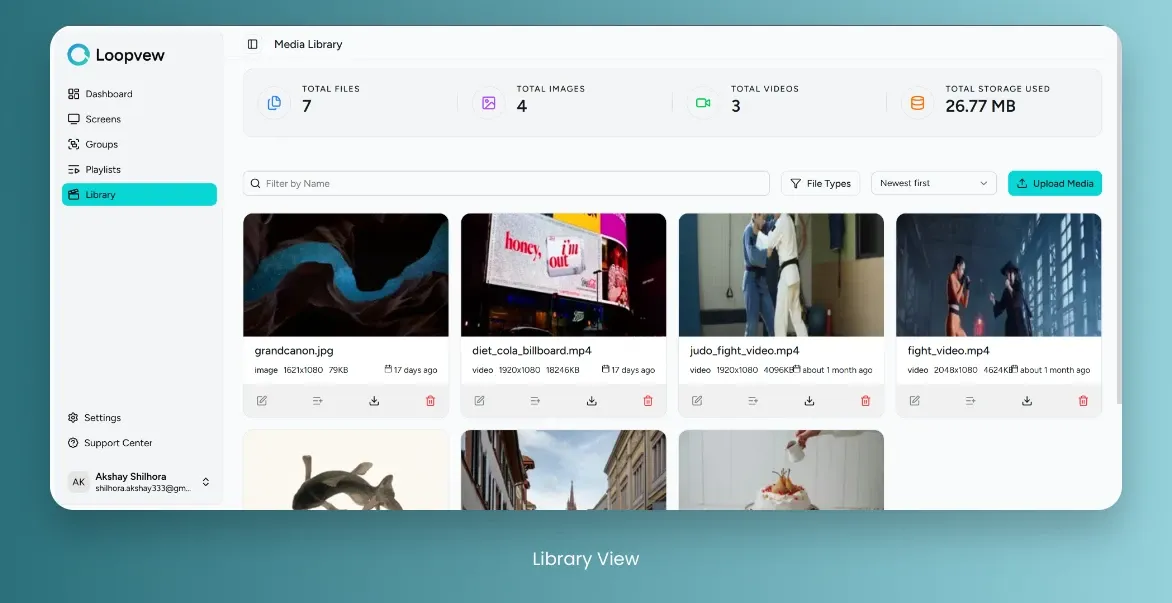
Library Overview
Library Stats: top bar shows the library stats:
- Total Files: Total Number of Media Files.
- Total Images: Total Number of Images.
- Total Videos: Total Number of Videos.
- Total Storage Used: Total storage used by all media files.
Library List Card: list card of all uploads with following details:
- Media Name: Name of the media.
- Media Resolution: Resolution of the media.
- Media Size: Size of the media.
- Uploaded Date: Upload time from today.
- Action: at bottom of the card you have download and delete actions.
View All Media Files
Open the Library tab to see every image and video you’ve uploaded.
-
Click on the Library tab in the left sidebar.
The Library lists every image and video you’ve uploaded.
Upload a File
Upload media from the Upload Media button — drag files in or browse your device.
-
Click on the Library tab in the left sidebar.
-
Select the Upload Media button located above list card view.
-
In the pop-up window, you have two options to upload files:
- Drag and Drop: Drag and drop your files into the designated area.
- Browse Files: Click Upload Files to select files from device.
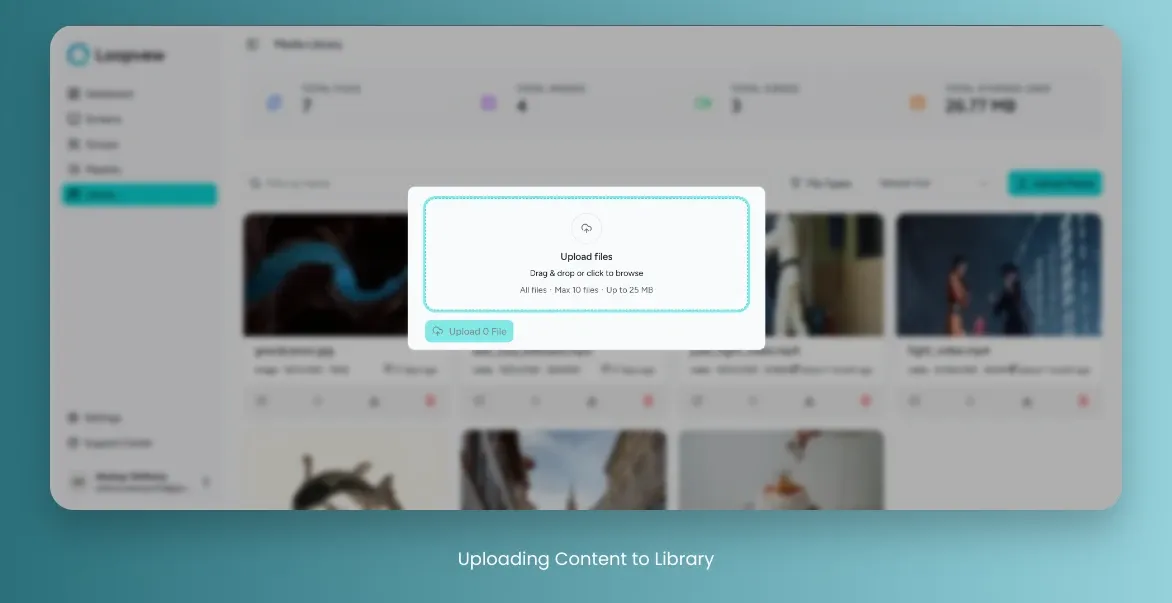
The Upload Media dialog — drag files in or browse your device. -
Choose the files you wish to upload from your device.
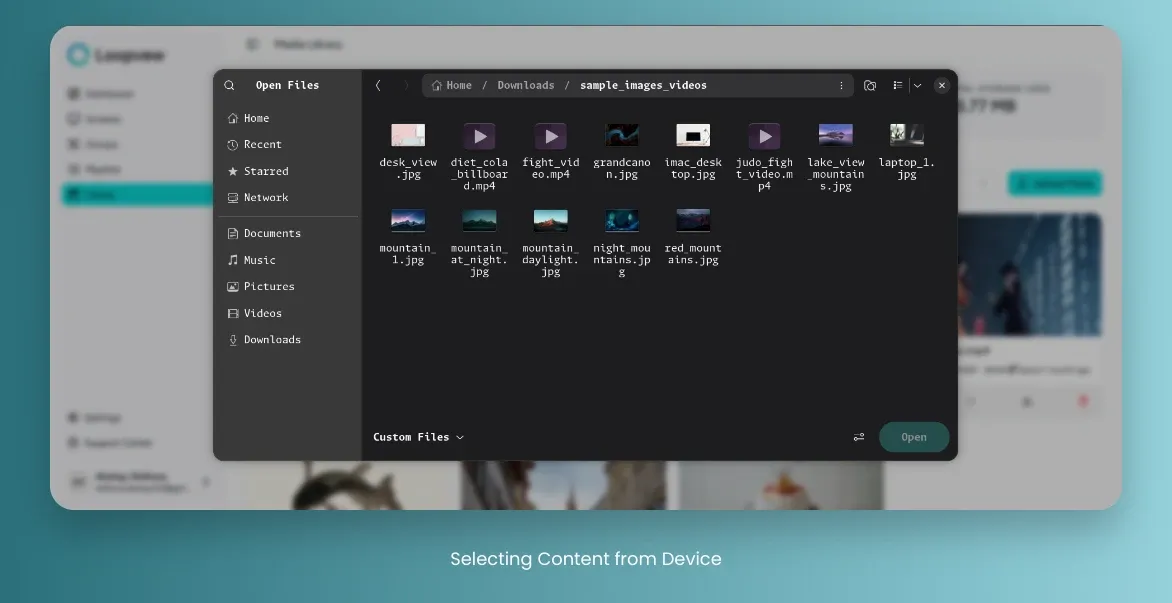
Selecting media files from your device. -
Once the file is selected, it will appear in the upload area.
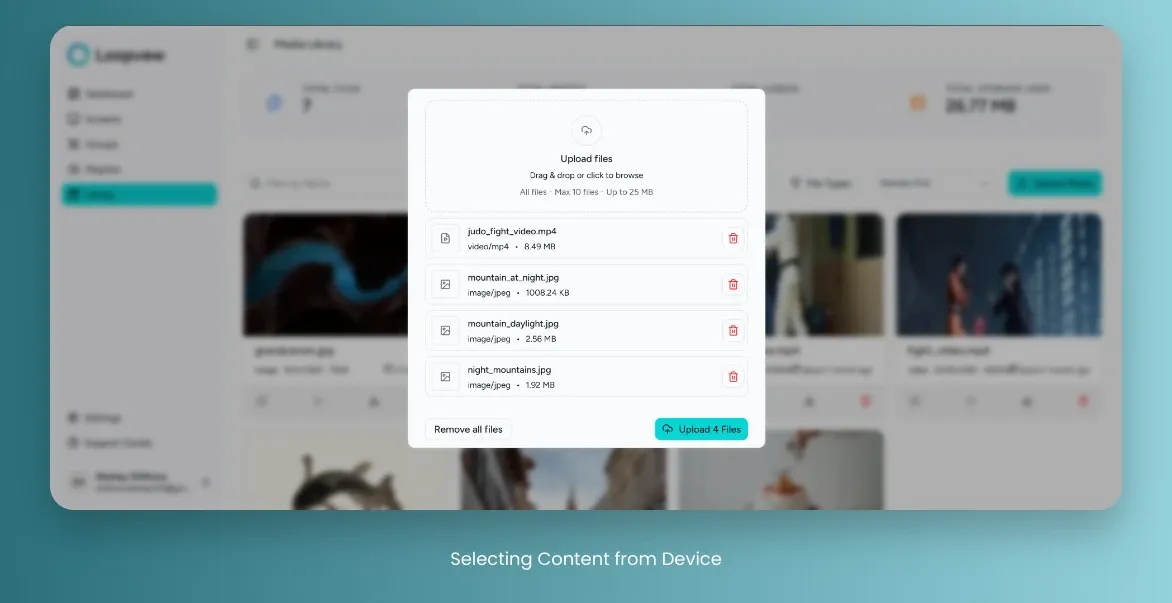
The selected file staged in the upload area, ready to upload. -
Click on the Upload Button to start the upload process.
View Only Photo/Video Files
Filter the library to just images or just videos with the File Types filter.
-
Click on the Library tab in the left sidebar.
-
Click on File Types button and select the type.
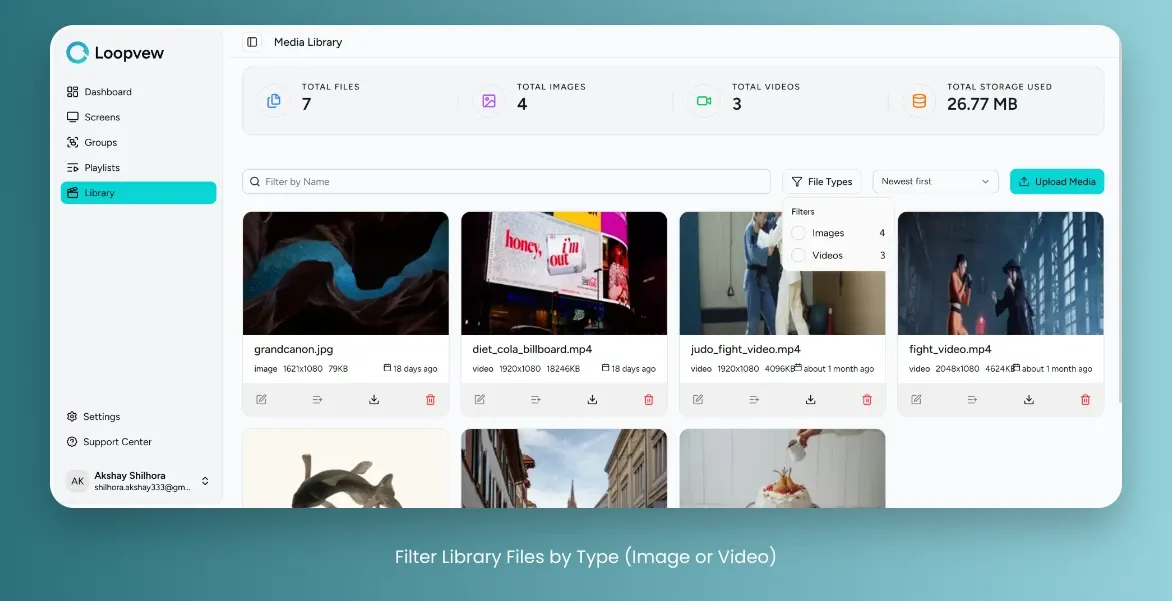
Filtering the library by file type.
Search a File
Find a file by name with the Filter by Name search input.
-
Click on the Library tab in the left sidebar.
-
Use the Filter by Name Search input to search for a file by name.
Searching the library by file name.
Filter Files by Upload Date and Size, and Name.
Sort the library by upload date, size, or name with the Newest First filter.
-
Click on the Library tab in the left sidebar.
-
Use the Newest First filter located beside the File Types button.
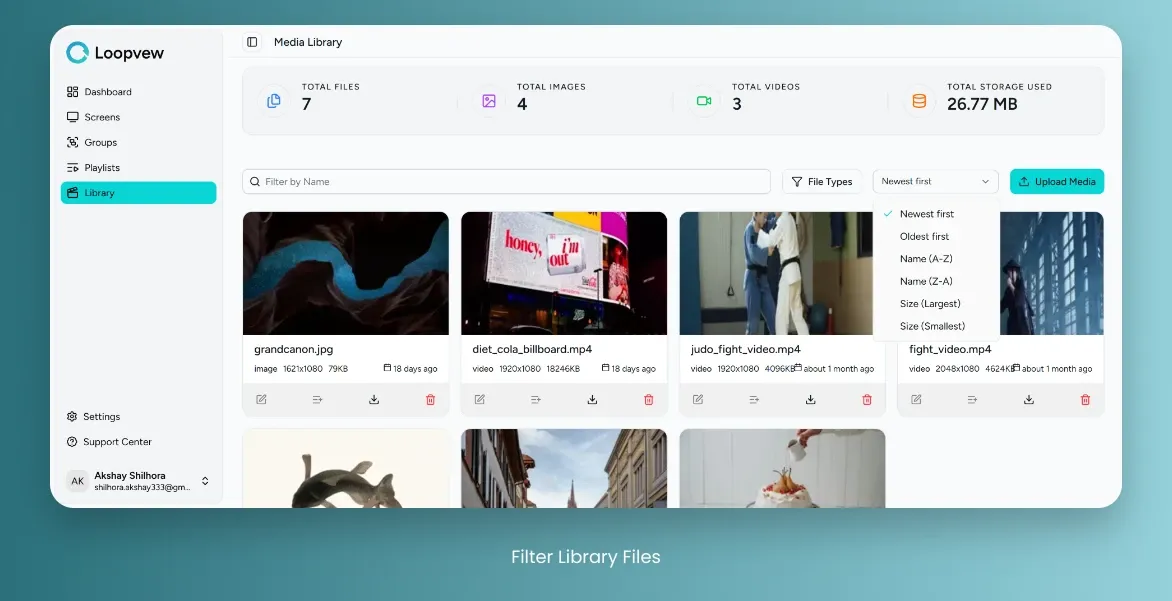
Sorting and filtering the library by date, size, or name. -
Select the desired filter option from the dropdown menu to sort files by upload date, size, or name.
Delete a File
Delete a media file from its Delete action, then confirm.
-
Click on the Library tab in the left sidebar.
-
Locate the file you wish to delete.
-
Click on the Delete Button associated with the file.
Locate the file and open its delete action. -
Confirm the deletion by clicking the Delete Button in the dialog.
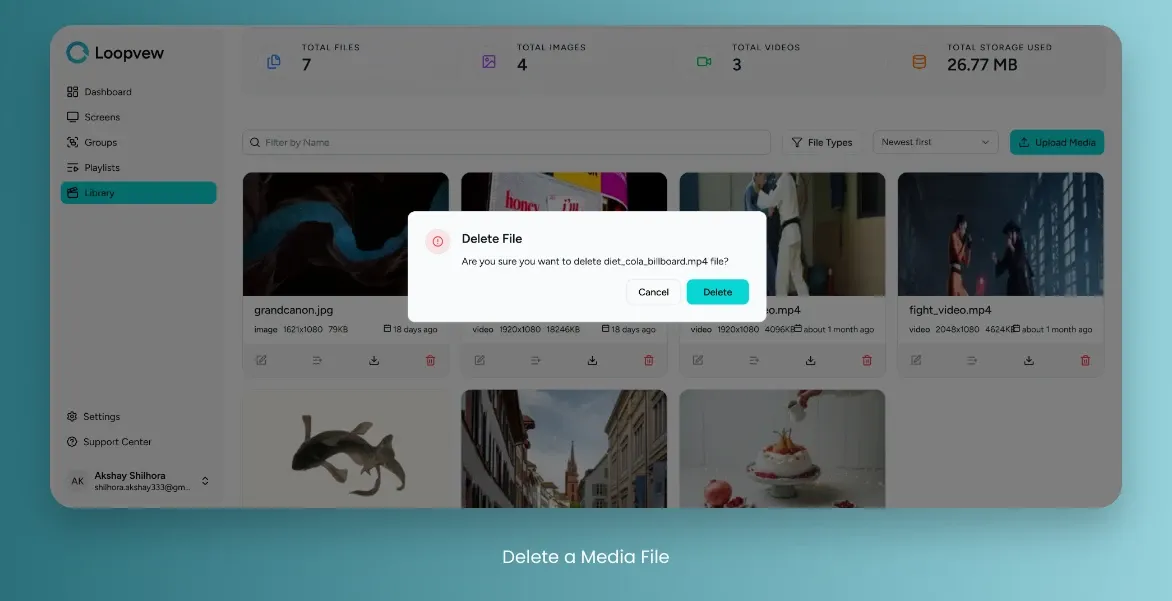
Confirming deletion of a media file.